Getting started
This tutorial shows you how to get started with MotionLink. You will learn:
How to pull content from Notion into Markdown files
How to respond to MotionLink publish events in your Github Workflows
What happens after each of the above two steps is all up to you. MotionLink gives the developer complete control over how they want to present their content.
How to pull content from Notion into Markdown
Connect your account to Notion
Open the MotionLink Console and sign in with your Github account. You will then be asked to authorise MotionLink with Notion. Click the “Authorise with Notion” button and you will be redirected to the Notion app to authorise MotionLink. Select the workspace you want to install MotionLink in and then select the databases you want to publish with MotionLink. You can also select pages to give MotionLink access to all databases in that page.
💡 To install MotionLink in more workspaces, simply sign out of the MotionLink console and sign in and authorise with Notion again, but selecting a different workspace this time. Your existing links will not be affected.
Create a Link
Prepare the Notion database you want to publish. MotionLink requires that your database have a select property named Status. Your pages can have any value for Status, but MotionLink will only tag your repo if pages with Published, Completed, or Public status values have change. This gives you the flexibility to have a database with, for example, 'Draft', 'In review', and 'Published' Status values and only changes made in the 'Published' column will tag your repo.
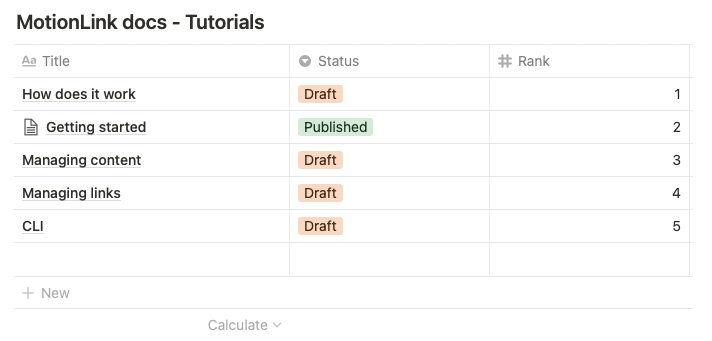
Once you have the Notion database setup, connect it to the GitHub repo to be tagged when publish events occur. MotionLink calls this connection a link. Click the '+' button on the bottom right corner in the MotionLink Console to create a new link. Give the link a name, select the Notion database to publish then the GitHub repo. Click 'Create Link' and the new link should display on the Home Screen.
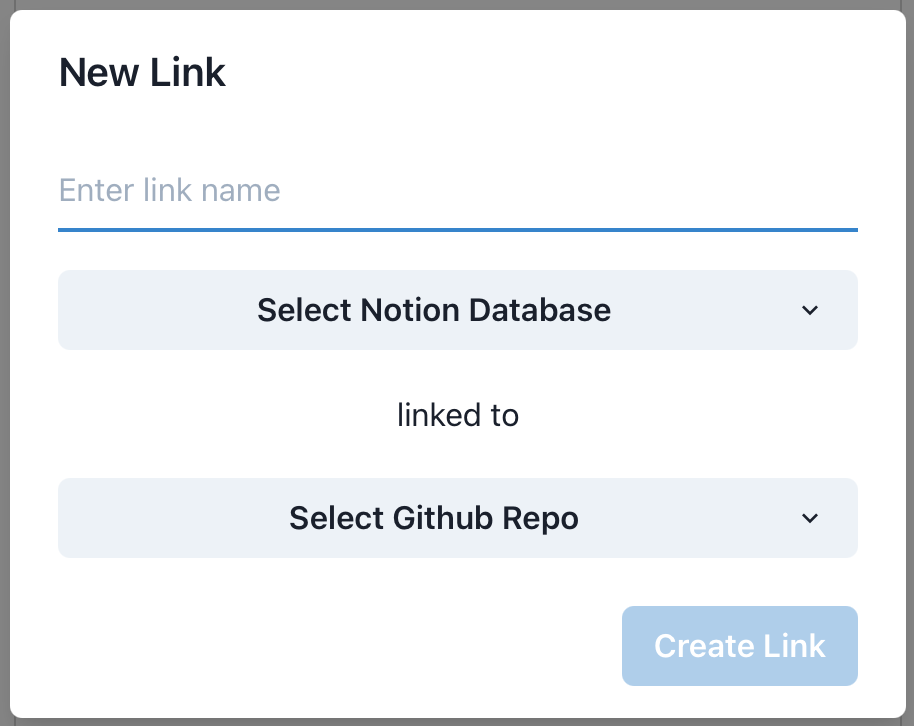
💡 If you do not see your Github repo, double check that MotionLink does have access to the repo on Github. In most cases this may be due to the Github account used to sign in to MotionLink not having access to the repo.
Now if you go the Notion database and change its name or change the Status of a page from any other value to Published, Completed, or Public , the Github repo you linked with the database will be tagged. Try it!
Generate Markdown from Notion Pages
The motionlink-cli enables one to generate markdown files from Notion pages pulled from a database. It can be customised to generate specific markdown flavours. It also takes care of fetching your media from Notion so that it can be served with your static website.
The tool requires two inputs:
The
motionlink.config.jsfile in the current working directlyThe access keys of the links to pull pages from
For this example we will create a config file that transforms each notion page from a single database to a markdown file in the output directory. You can learn more about config files from the CLI docs.
First, install the CLI tool with:
npm i --save-dev motionlink-cli@latest
Then create a file named motionlink.config.js in the root of your folder with the contents:
const markdownService = require('motionlink-cli/lib/services/markdown_service');
const ObjectTransformers = markdownService.ObjectTransformers;

/** @type {import("motionlink-cli/lib/models/config_models").TemplateRule[]} */
const rules = [
  {
    template: 'page_template.md',
    outDir: './public',
    uses: {
      database: 'articles',
      fetchBlocks: true,
      map: (page, ctx) => {
        // Setting page._title overwrites the file name for this page, which is the page id by default.
        //
        // All Notion pages have a title. Users are, however, allowed to change the name for the title property in the
        // Notion UI. In this example, the title property is 'Name'. That is, the title column in the database is named
        // 'Name' for this example. In a database of authors, for example, you may want the title to be 'Author', in which
        // case the way to read the title text would be:
        //
        // page._title = page.data.properties.Author.title[0].plain_text;
        //
        // By default the title property is named 'Name'.
        page._title = page.data.properties.Name.title[0].plain_text;

        // Use page.otherData to pass computed, or any other, data to template files.
        page.otherData.titleMarkdown = '# ' + ObjectTransformers.transform_all(page.data.properties.Name.title);
        page.otherData.content = ctx.genMarkdownForBlocks(page.blocks);

        return page;
      },
    },
    alsoUses: [],
  },
];

module.exports = rules;
This config file maps every page found in the database to a ./public/<page_title>.md file using the template page_template.md file.
Now let's add our page_template.md file:
{{{otherData.titleMarkdown}}}

{{{otherData.content}}}
Notice that MotionLink uses Mustache templating and the whole page object returned by the
mapfunction, in the TemplateRule, is passed to the template.
Now that sorts out the configuration file. We now need to tell the tool where the data is to be pulled from. Notice in the config file we have a database alias named articles. To let the CLI tool know where the data for articles is, we have to pass articles=<link_access_key> as a command line argument where <link_access_ke> is the access key of the link to pull articles from (Remember a link only has one Notion database). Clicking on a link in the MotionLink console reveals its access key. Just copy it.
You can now finally run the CLI tool to generate the markdown files:
$ npx motionlink articles=<link_access_key>
Replace <link_access_key> with the access key for the link to pull articles from.
The motionlink-cli has a lot of features. Do checkout its development on Github for more details. Feel free to drop questions in the discussions shall you run into any issues.
⚠️ A link access key gives access to the Notion database it links. Store it securely. It is a good idea to pass the arguments to the CLI tool through an environment variable.
How to respond to MotionLink publish events in your Github workflows
The tags MotionLink pushes to your repo on a publish event have the form motion-link-n. Where n starts at 1 and is incremented by 1 for every new publish event. You can respond to this event by adding a Github action to your repo. For example, the following workflow runs the motionlink-cli and deploys the output to Netlify. Normally you would run your static site generator after running the cli.
name: 'My Workflow'

on:
  push:
    tags:
      - 'motion-link-*'

jobs:
  deploy:
    name: 'Deploy to Netlify'
    runs-on: ubuntu-latest

    steps:
      - uses: actions/checkout@v2
      - run: npm ci && npx motionlink ${{ secrets.MOTION_LINK_VARS }}
      - uses: jsmrcaga/action-netlify-deploy@v1.6.0
        with:
          NETLIFY_AUTH_TOKEN: ${{ secrets.NETLIFY_AUTH_TOKEN }}
          NETLIFY_SITE_ID: ${{ secrets.NETLIFY_SITE_ID }}
          NETLIFY_DEPLOY_TO_PROD: true
          build_directory: "./"
FAQ
I created My link, but my repo is still not tagged
The most common reason for this is that the Github account you signed in with does not have write access to the repository. Ask the Github repository owner to give you write access to the repo.